
kdb Insights Enterprise
Kdb Insights Enterprise is a UI-focused analytical platform built for time series data.
Task
Over the course of development I took on design requirements for specific features of the platform. A couple of these included:
- New User Experience
- Import Data Wizard
Collaboration
A number of scrum teams were responsible for different aspects of the application. I was one of three designers working on the platform.
1. New User Experience
User Study
After the release of v1.0 of the platform I conducted a usability study with a mix of experienced kdb engineers and new hires, who had no prior experience with the platform, to complete a set of tasks:
- Import Data
- Create a Database
- Query Data
- Visualize Data
These four processes were offered on the platform home page, but it was hard for new users to orientate and understand which to do first.
The usability study recorded the actions and time taken for users to complete the tasks. Participants were encouraged to discuss their thoughts during the tasks. During this study it quickly became apparent data import was causing the most trouble.
Importing data could be achieved by either: [1] following the steps of an import wizard or [2] creating a data pipeline. Difficulties arose at the point data was to be stored on the platform; ingested data required a table (+ schema) to be available in a database to write data too. But the import wizard – or pipeline process – didn’t offer a database (and table) creation step. So, it was necessary for users to ‘step out’ of the data import wizard or pipeline creation process in order to create a database, then switch back to the wizard or pipeline to import their data. In some instances, users had to be guided as to next steps when they became stuck doing the task.
SOLUTION
My solution was to focus new users on database creation, before guiding them to import data. All options would be open to the user should they choose to ignore the prompt.
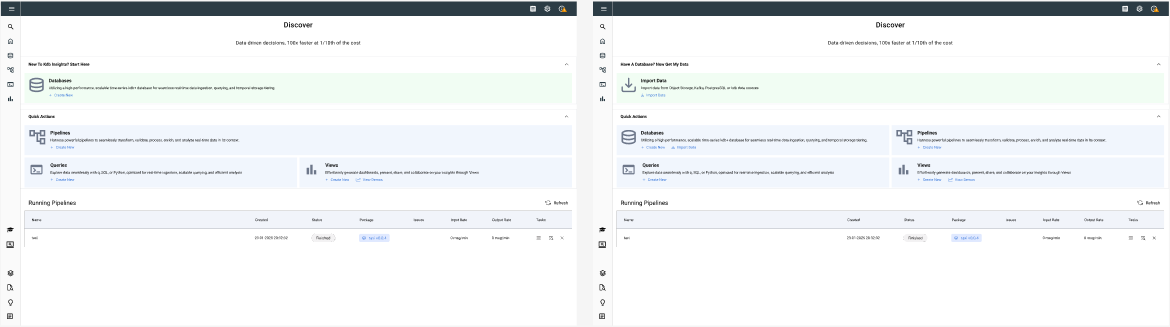
ALTERNATIVE DESIGN
An alternative design focuses attention on just database creation only for new users, before reverting to the standard home page on subsequent log-ins.
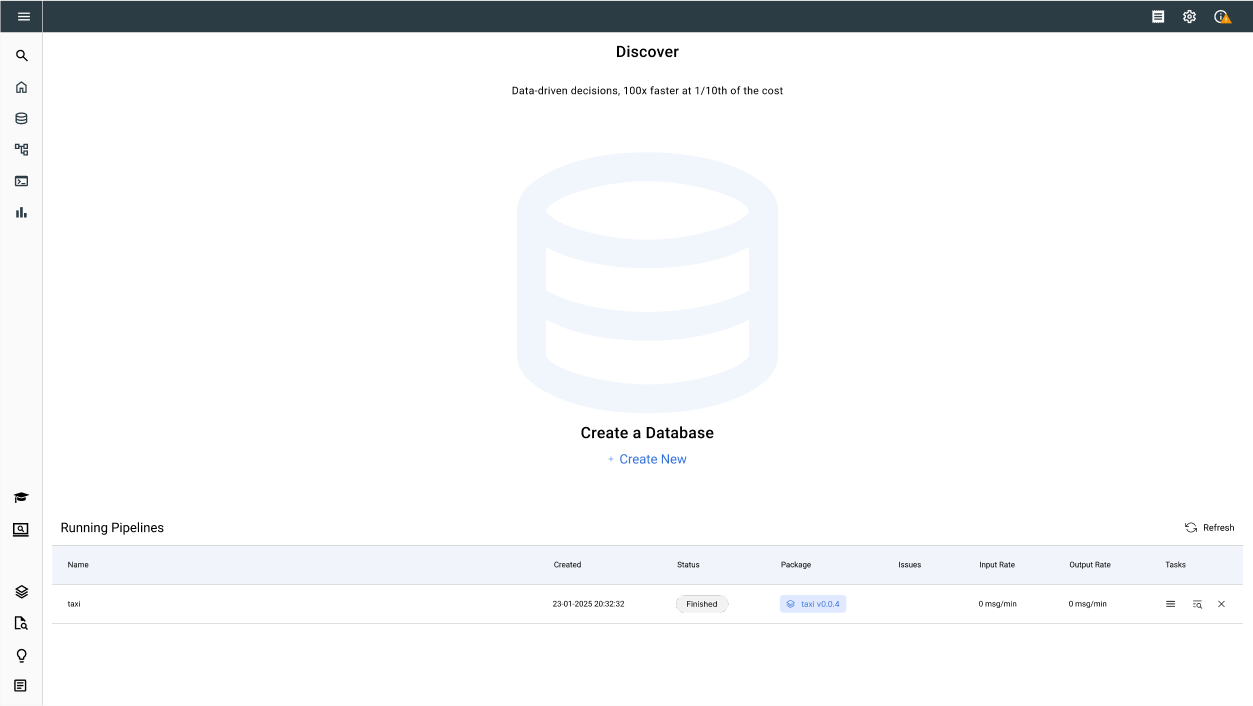
current DESIGN
Not implemented as of v1.12 (February 2025).
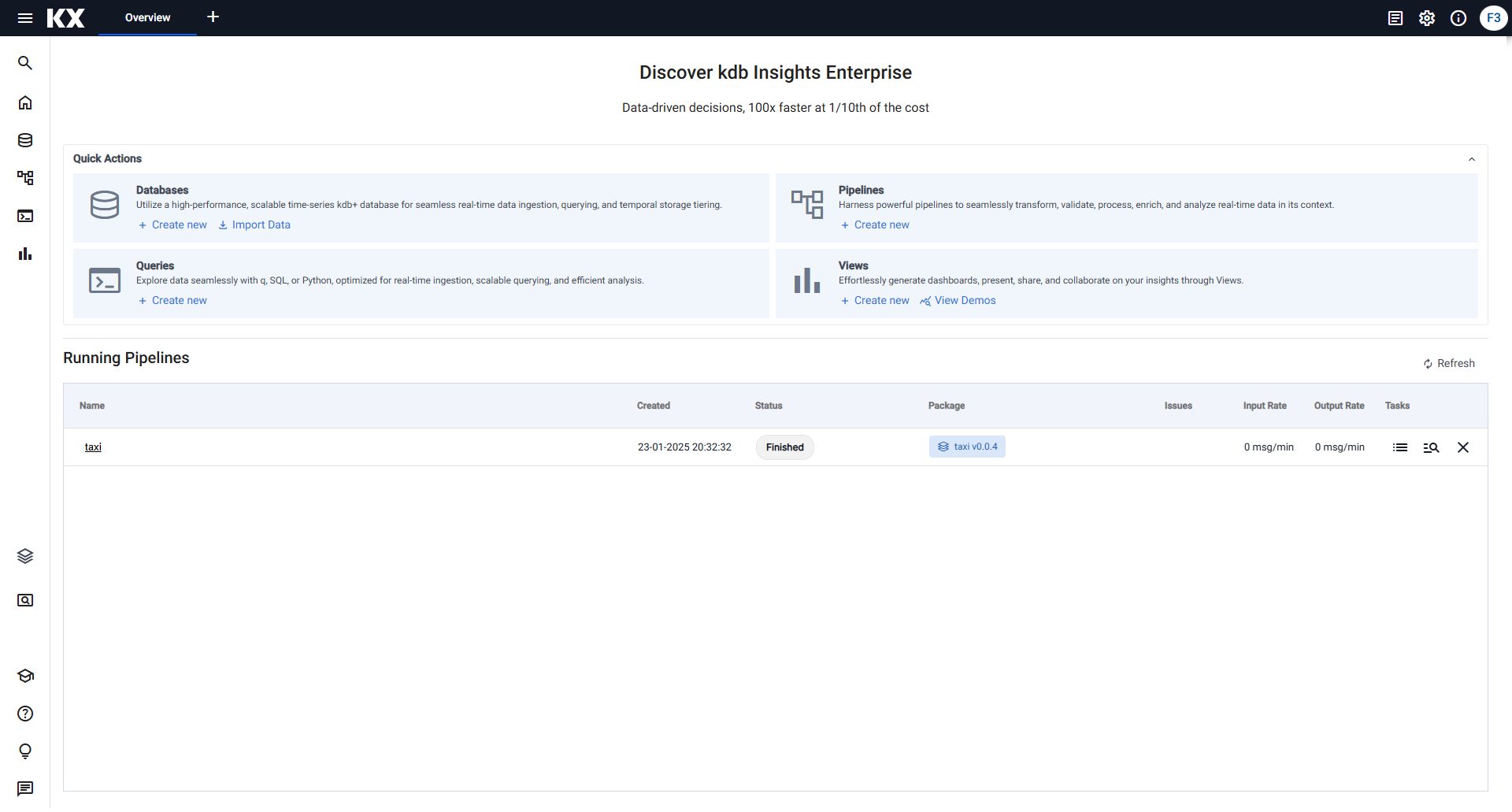
2. Import Data Schema
The Data Import Wizard has a series of steps a user must complete before their data is available on the platform. One of the sticking points identified during the usability study was the schema definition step.
current design
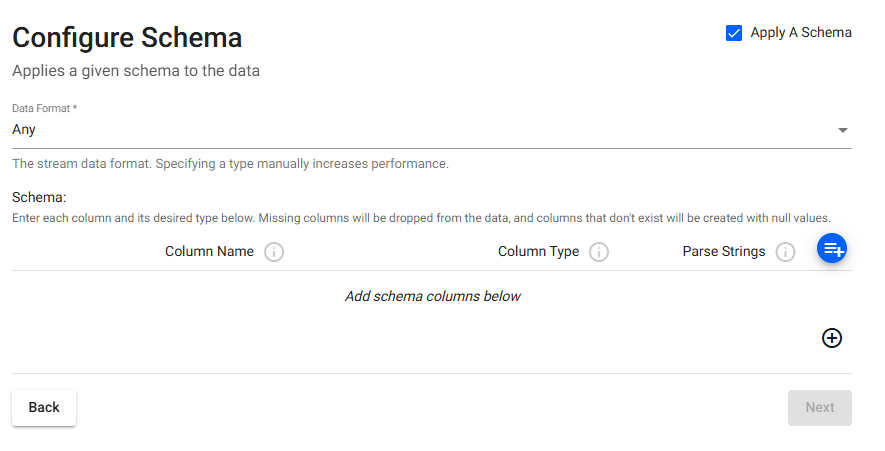
The problems users encountered:
1. Do I need a schema?
2. Where do I start?
Also, not immediately apparent, is a schema can be added from a database, but a user must first click on the blue “+” icon. This opens a modal dialog to load a database (and schema), but only if database was available, there was no option to create a database if a user didn't have one.
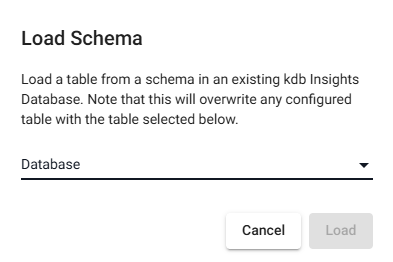
For a user to create a database, they would have to leave the data import wizard and open a new tab - create a database and table - switch back to the data import wizard tab, re-open the dialog, select the newly created database and table, then continue with the data import.
SOLUTION
While a user can attempt to import data without first creating a database, a database is required to write data too, so where possible, a user should be encouraged to create database (and table) before attempting to import any data.
1. Do I need a schema?
This is a tricky question for a new user to answer and in the majority of cases a schema is required (so the requirement is enabled by default). But if a schema is not needed, then a user can skip to the next step.
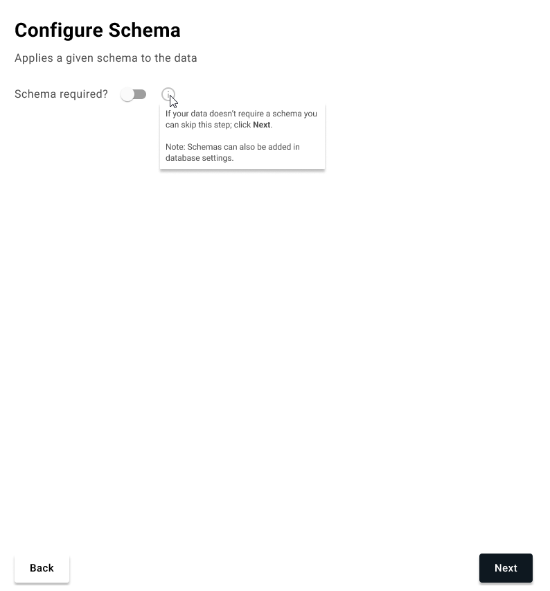
So if a schema is needed, what next? The existing schema wizard doesn't offer much guidance, but if a user has kicked off a data import process and hasn't a database, then an option to create a database (or go back) is the only active choice available (if a user wishes to leave the data import altogether, they can close the tab).
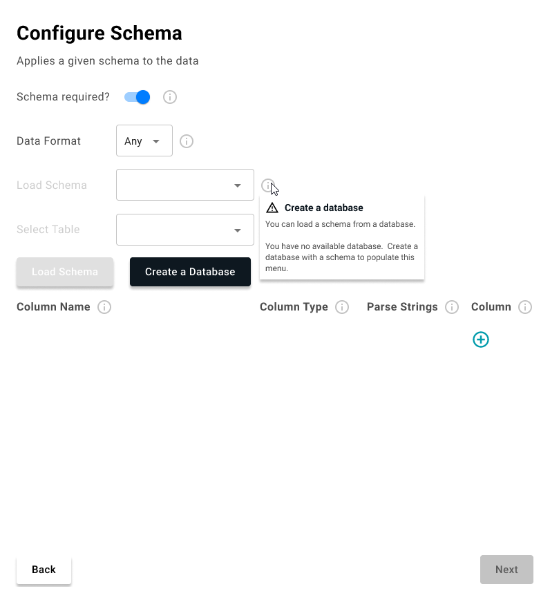
Database creation has some advanced settings, but for a new user the goal is to get them up setup with the least amount of effort; this means name the database and add a table.
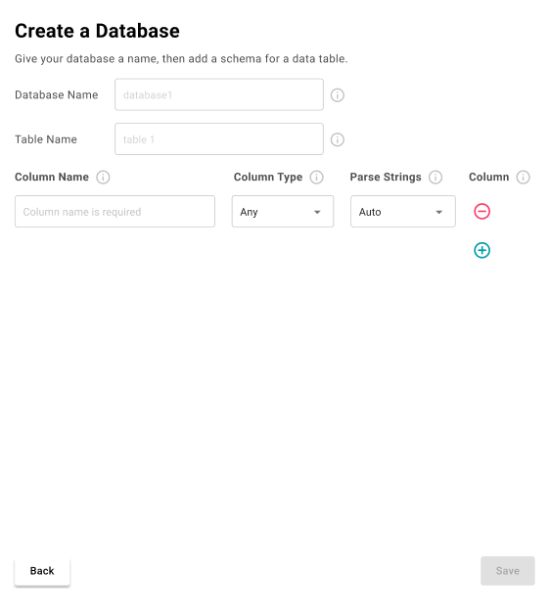
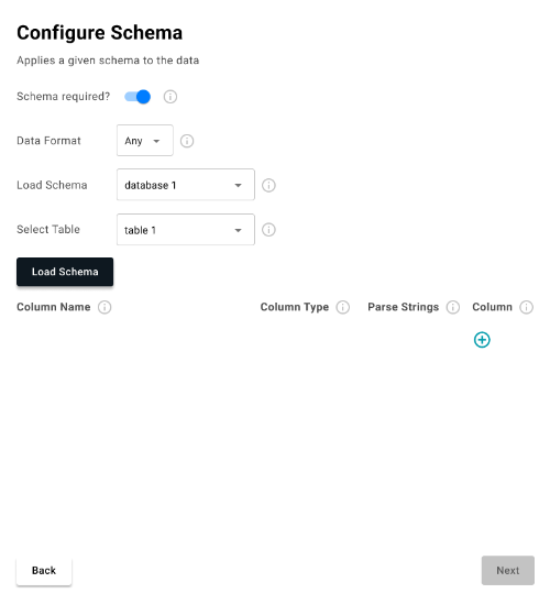
Once a schema is loaded, the Next button is enabled to continue the data ingestion process.
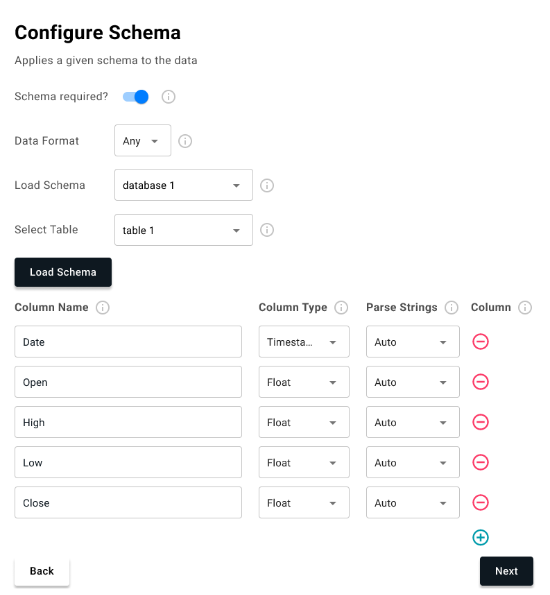
The next step of the wizard writes the data to the kdb database. Again, this highlights the need for a user to have a database before attempting to import data.
current status
Not implemented as of v1.12 (February 2025).
3. Encryption-at-Rest
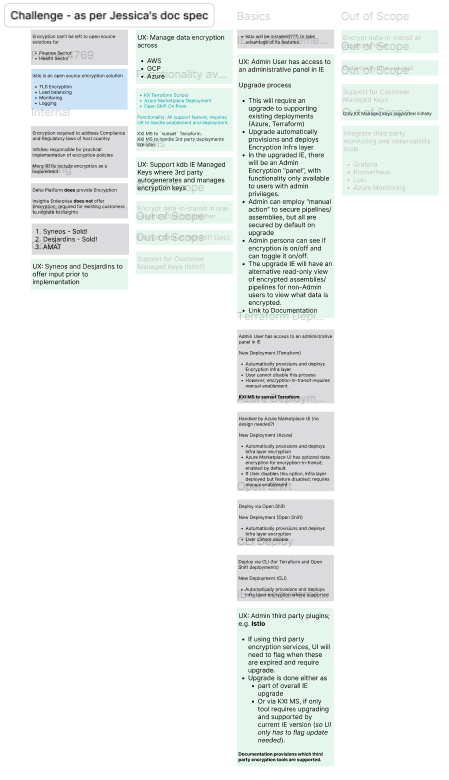
From a UI/UX perspective, the Encryption-At-Rest requirement was relatively modest, but it was still important users understood what data was encrypted on the platform, and what was not. The specifics were detailed in a Business Requirement Document (BRD) by the product owner.
User persona and journey development
As a starting point for this functionality, I drew up a group of users for whom data encryption an important requirement, and mapped out their respective journeys - considering their core needs and frustrations.
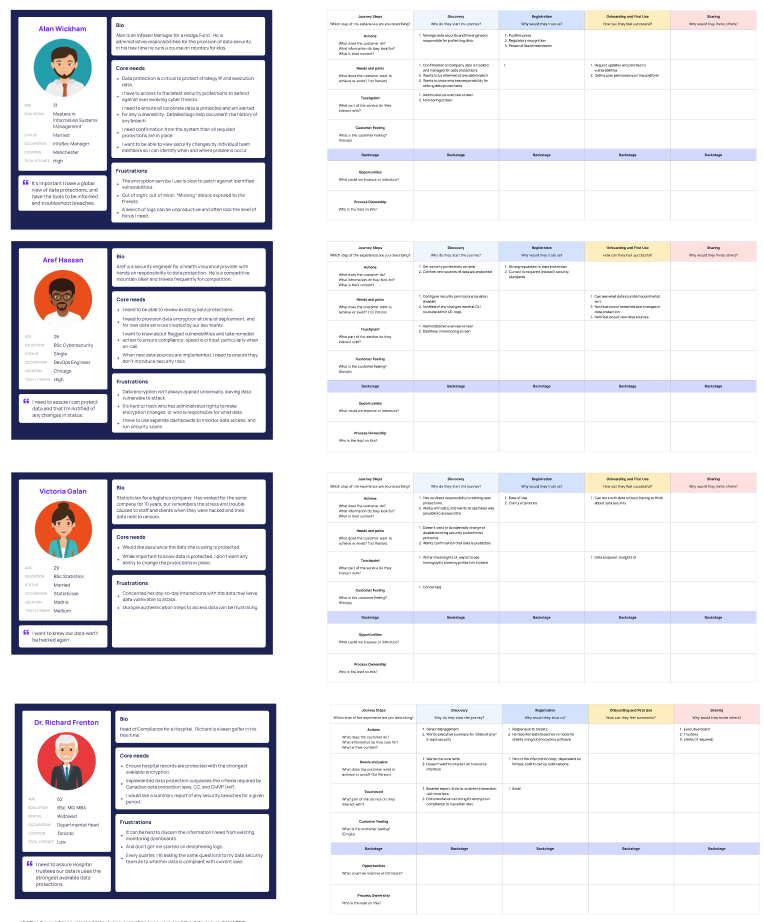
With the users defined, I then sectioned the BRD into its constituent requirements, and identified the UI/UX elements.
SOLUTION
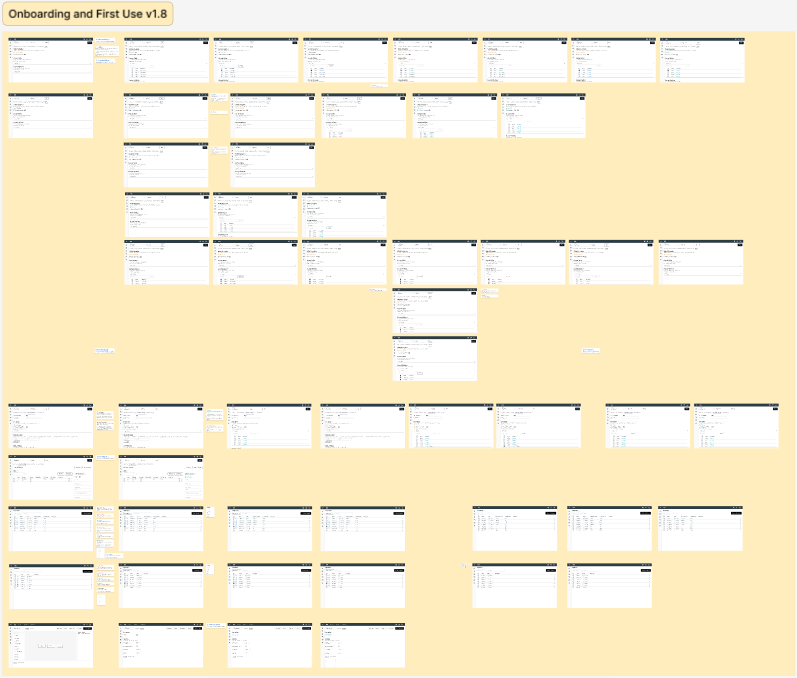
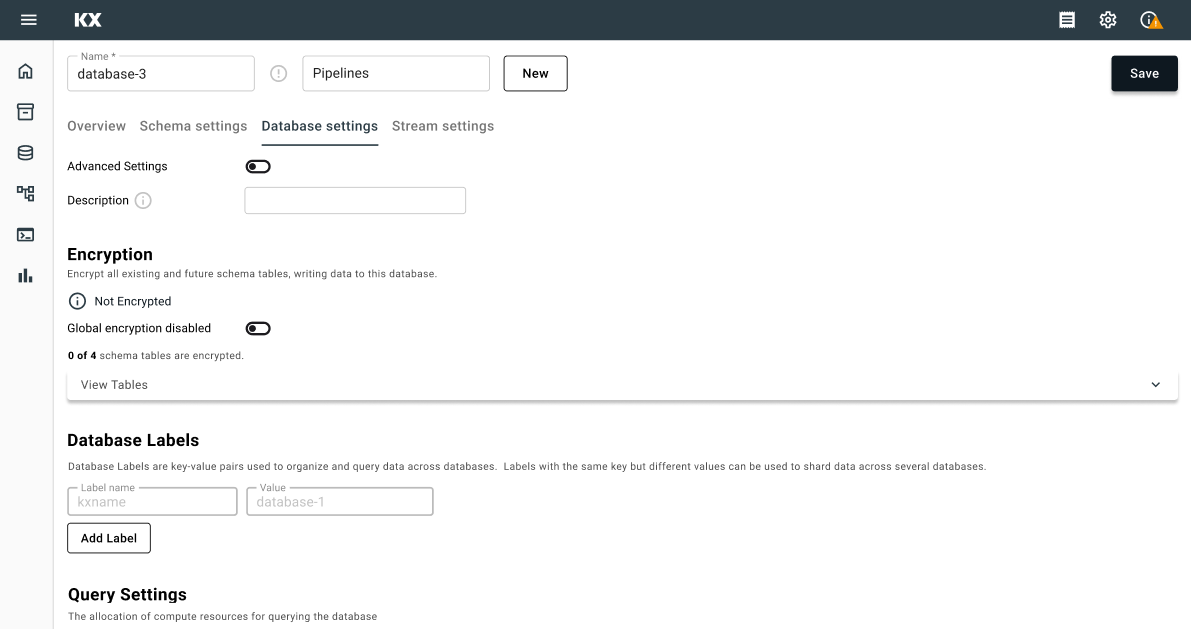
The initial design (for v1.8) focused on encryption at the table level. (Admin) Users could encrypt all tables in a database, or encrypt individual tables; so there were scenarios where a database could be fully encrypted (all tables), partially encrypted (some tables) or not encrypted (no tables). Iconography with color coding was used to differentiate between the different states.
Users can see how many tables inside the database were encrypted.
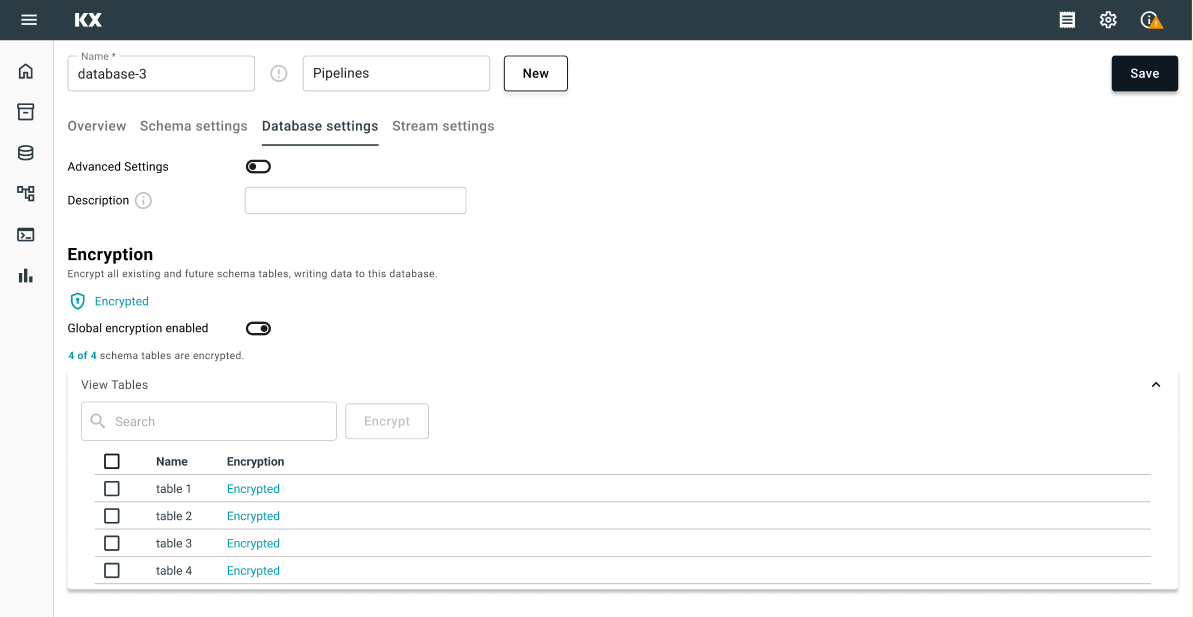
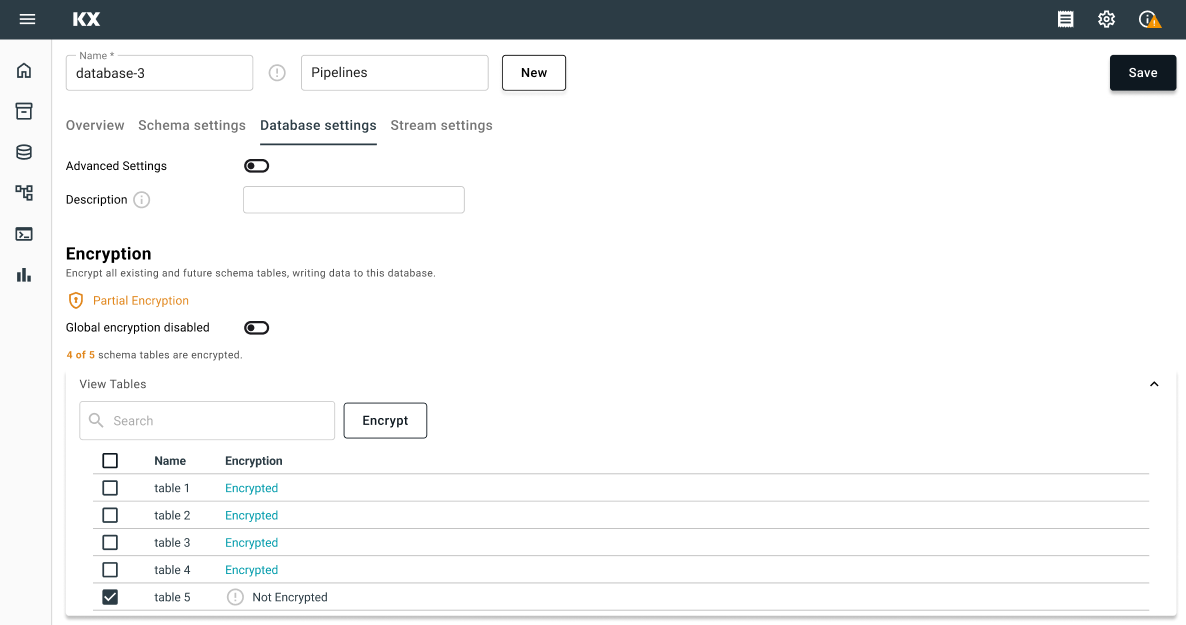
Individual table encryption could be done from Schema settings.
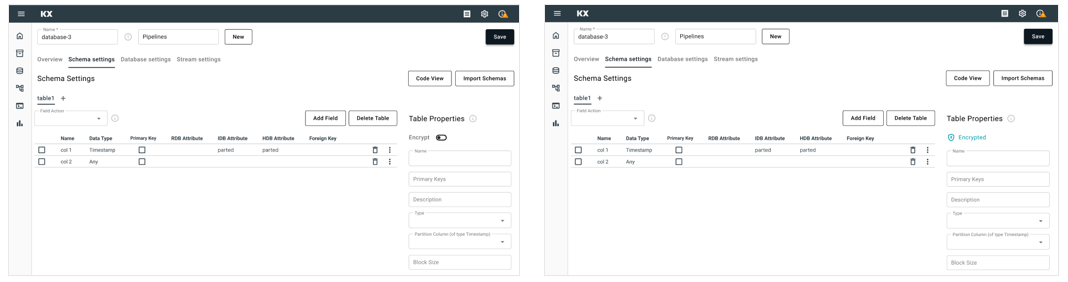
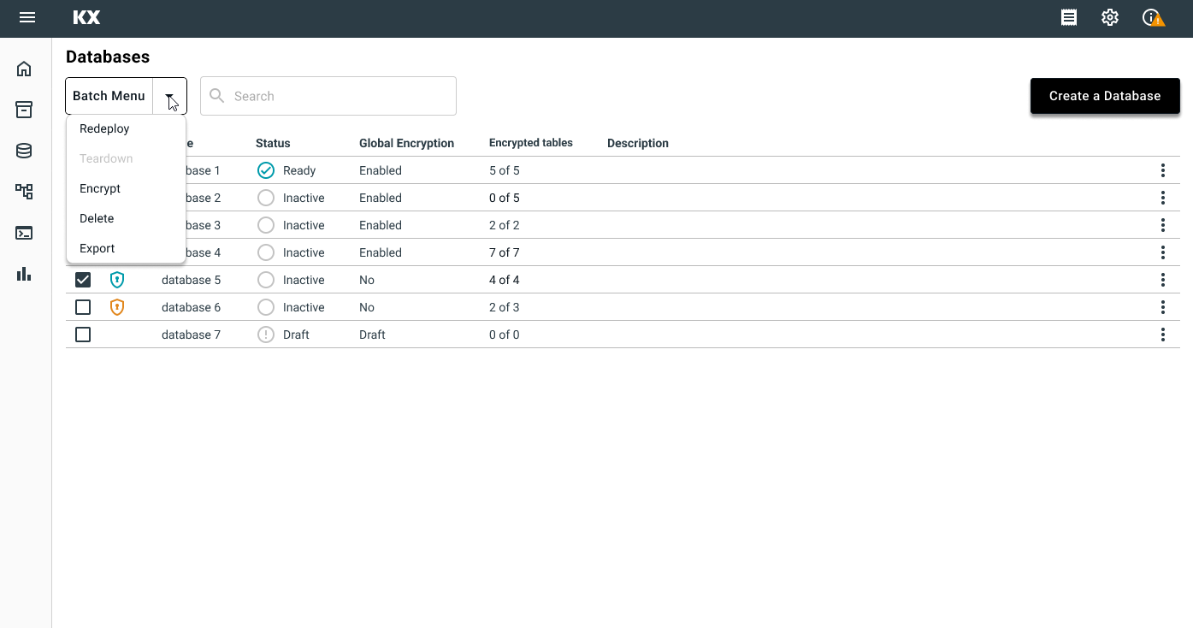
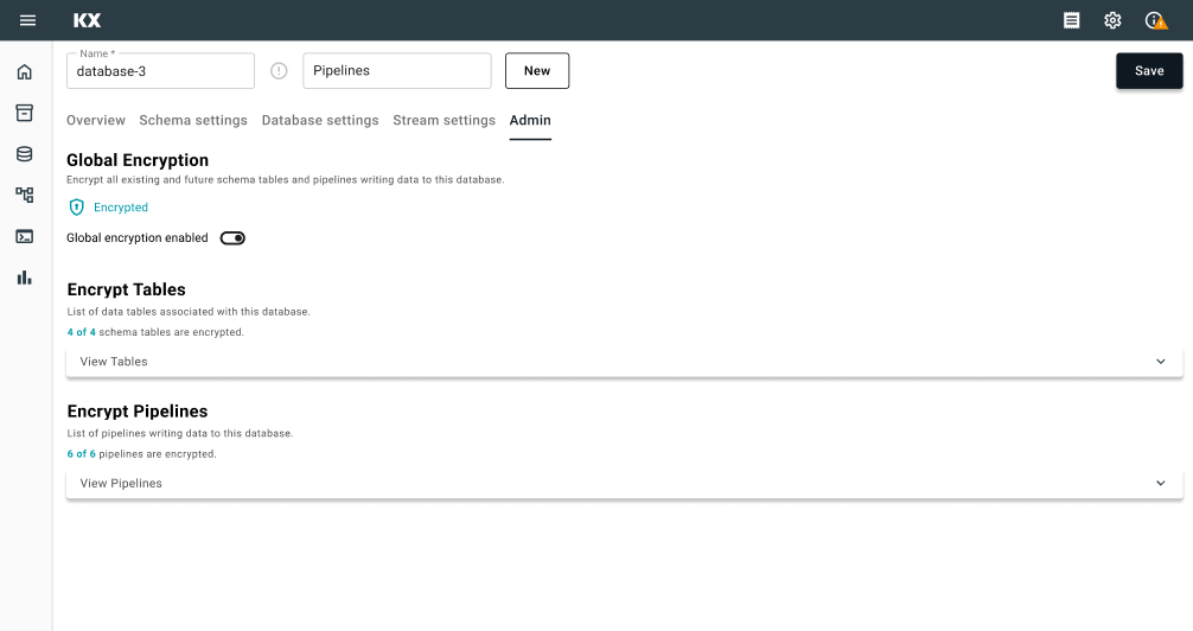
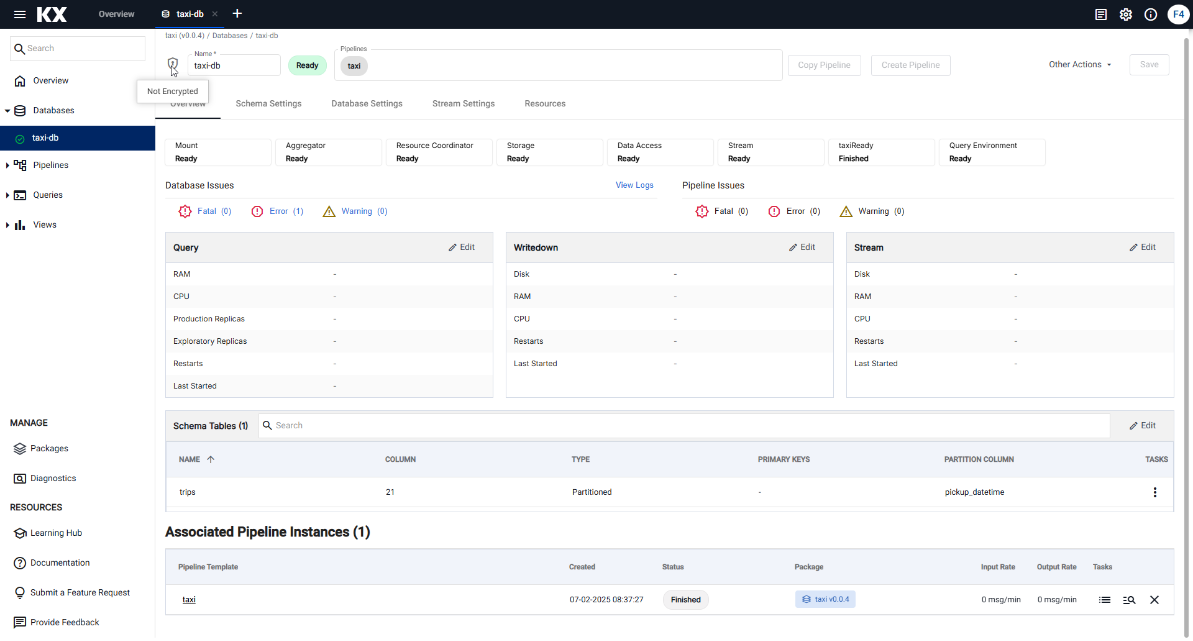
Parts of the design were implemented as of v1.12 (February 2025); Encryption shifted to the database level, so tables are either all encrypted or not. The database summary page was removed, so this part of the design was no longer needed. There is no administrative tab.
You Be The Judge...
Give the free trial of kdb Insights Enterprise a spin and add your thoughts.